
Google Chrome has long been the go-to browser for developers, webmasters, and everyday power users. However, structural changes under the hood often force users to adapt. With Google officially stopping the application of XSLT stylesheets in Chrome, anyone who frequently relies on raw XML files, WordPress sitemaps, or RSS feeds is facing a sudden roadblock.
If you open an XML file or a site’s sitemap.xml right now, instead of a clean, structured layout, you might just see unstyled plain text or raw code. For developers checking SEO sitemaps, or content curators reading RSS feeds, this lack of formatting is a major productivity killer.
Fortunately, modern developer tooling is evolving to solve this precise issue. Here is a look at why this change is happening and how specialized extensions like XMLNest (https://xmlnest.com/) are stepping in to restore a clean, readable web experience.
The Problem: Why XML Styling is Changing in Chrome
XSLT (Extensible Stylesheet Language Transformations) allowed browsers to transform XML documents into human-readable web pages using built-in stylesheets (commonly used by WordPress, Yoast, and Rank Math for sitemaps, as well as server status pages).
When Chrome drops native XSLT support, these pages default back to plain, unformatted text or raw code trees. Sitemaps lose their organized table layouts, and feeds become impossible to browse comfortably. While security and architecture updates are necessary for modern browsers, they leave a gap for professionals who deal with data feeds, SEO audits, and API responses daily.
What to Look for in a Modern XML Reader Extension
If you want to maintain a seamless workflow without slowing down your browser, an ideal extension or tool should offer:
- Standalone Sandbox Styling: Stylesheets should run securely in an isolated sandbox environment without exposing your browsing data or requiring unnecessary permissions.
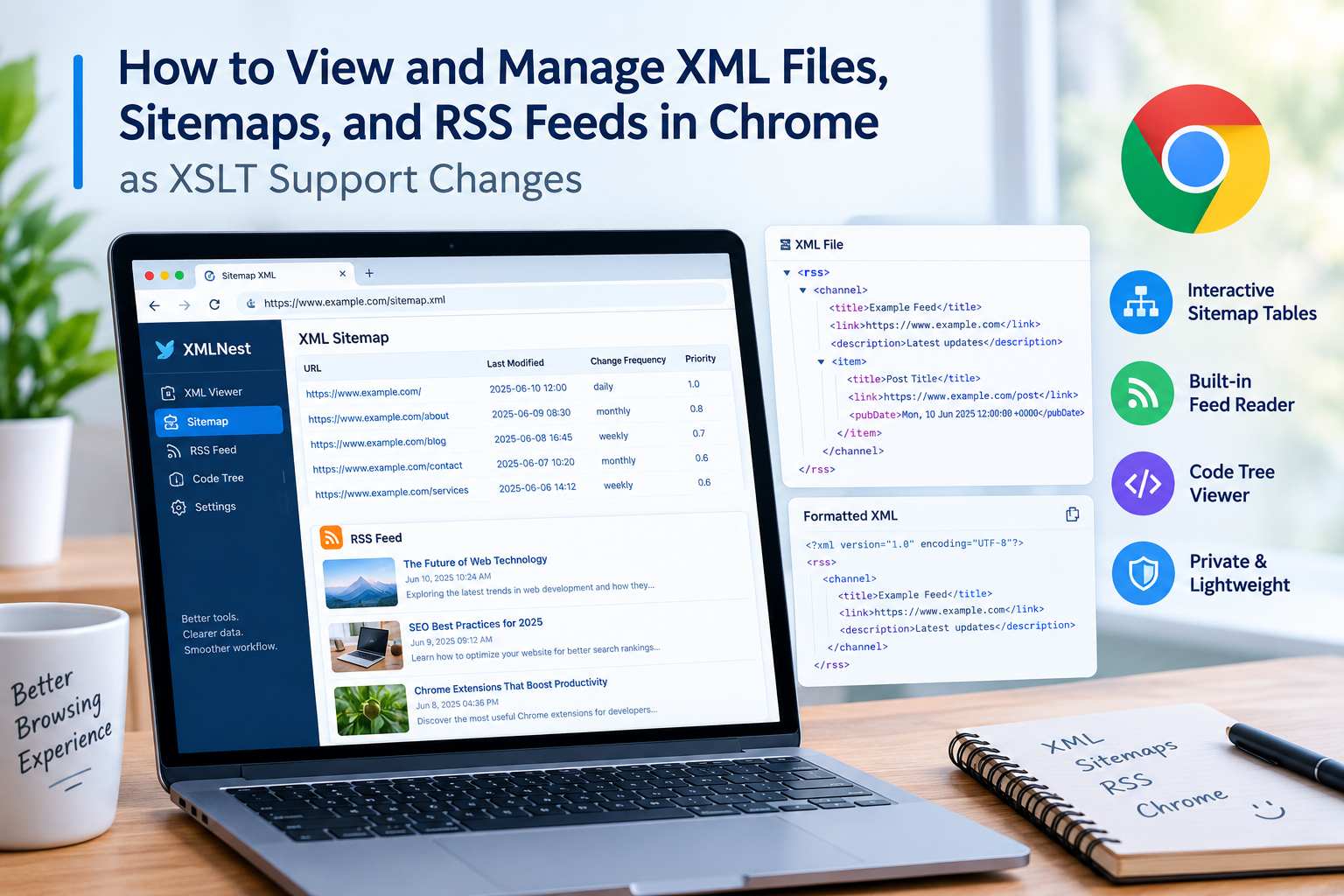
- Interactive Sitemap Tables: Raw sitemaps should automatically convert into clean, filterable, and sortable tables that you can easily export or inspect.
- Built-in Feed Readers: RSS and Atom feeds deserve a proper reader view—ideally equipped with handy utilities like built-in podcast players.
- Lightweight & Privacy-First: No accounts, no invasive tracking, and zero performance drag.
A Smarter Way to Handle XML: Meet XMLNest
For users looking for a frictionless solution to this browser update, dedicated tools such as XMLNest have emerged as the definitive fix. Designed specifically to tackle the post-XSLT era in Chrome, it automatically steps in when you open an XML address, rendering it as a styled page, a reader view, or a clear, interactive tree structure.
Instead of fighting with unformatted code or missing layout files, using a tool like XMLNest gives you:
- Instant Sitemaps & Feeds Parsing: Transform messy XML structures into structured tables or reader-friendly formats.
- Advanced Code Trees: Easily fold and unfold nodes, search names and values, or copy precise paths with error line-and-column detection.
- Complete Privacy: Operating with no accounts or data collection, keeping your local or remote files secure.
Conclusion
Browser updates are inevitable, but workflow disruptions don’t have to be. As Chrome transitions away from native XSLT support, adopting lightweight, specialized utilities ensures you can keep inspecting sitemaps, managing feeds, and reading XML files effortlessly. If you want to keep your technical workflow smooth, exploring tools like XMLNest is a step in the right direction.


Vous avez aimé cet article ?
Découvrez nos ressources gratuites et nos autres articles pour continuer à développer votre entreprise et acquérir de nouvelles compétences.